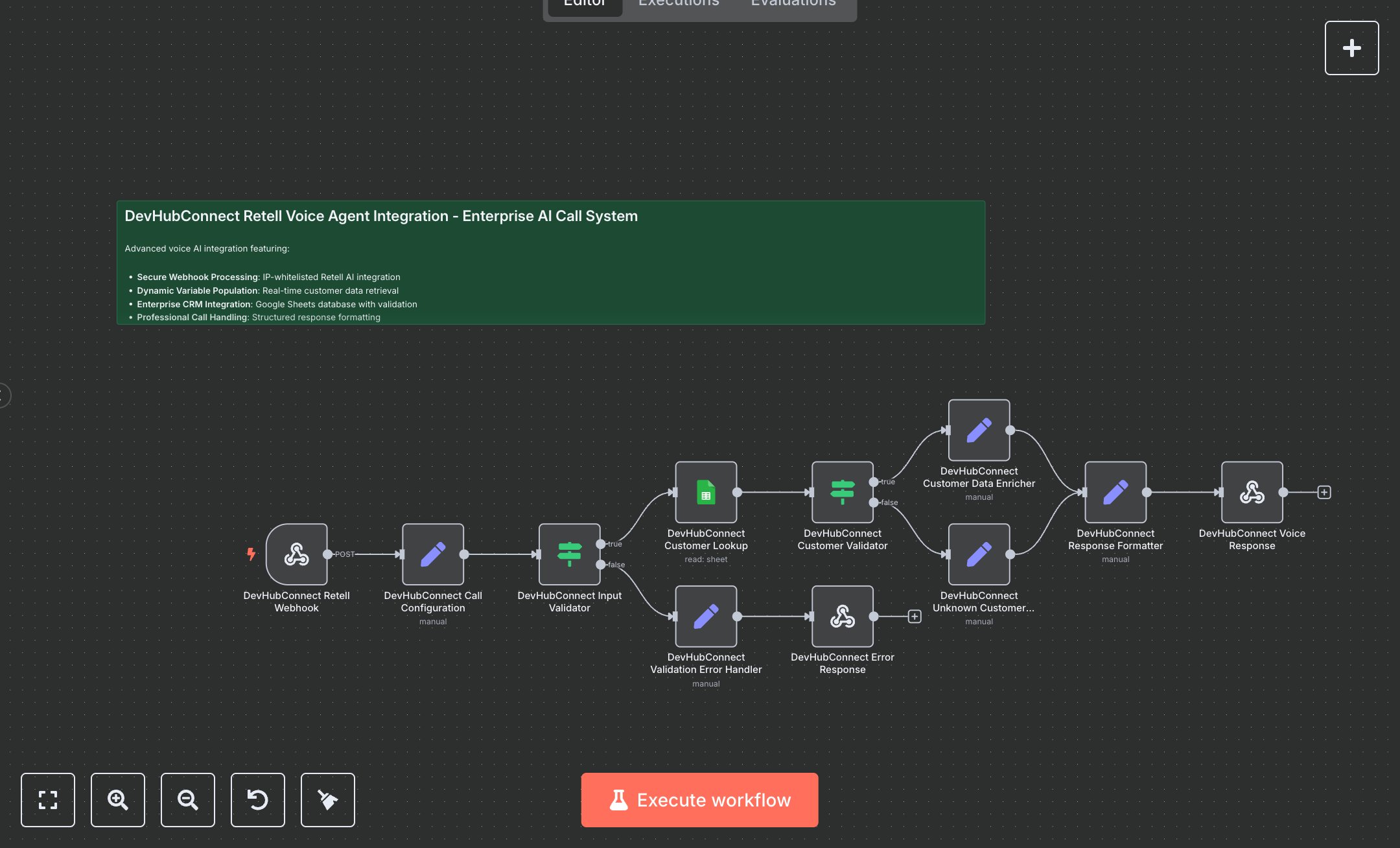
Call Management: Process Inbound Calls with Retell AI and Google Sheets for CRM Lookup
This workflow automates enterprise voice AI integration with Retell AI, processing inbound calls, retrieving customer data from Google Sheets, and formatting responses. Key nodes include Webhook for receiving Retell AI calls, Google Sheets for CRM lookup, Condition for input validation, Set for data enrichment, and Respond to Webhook for response delivery. To set up, install n8n from n8n.io for self-hosting or sign up at cloud.n8n.io for cloud hosting. Obtain Google Sheets OAuth2 credentials at console.cloud.google.com for the Google Sheets node. Import the workflow JSON into n8n. Configure the Google Sheets node with credentials, ensuring the document ID matches your CRM spreadsheet (e.g., “1TYgk8PK5w2l8Q5NtepdyLvgtuHXBHcODy-2hXOPP6AU”) and sheet name is “Customers”. Set the Webhook node to use POST, path “retell-voice-agent”, and IP whitelist “100.20.5.228” for Retell AI. No Retell AI API key is needed, but ensure Retell AI is configured to send POST requests to the webhook’s production URL. Verify the Condition node checks phone numbers (e.g., “+1234567890”) and webhook structure. Test by sending a test call via Retell AI to the webhook’s test URL. Verify the Google Sheets node retrieves customer data by phone number, the Set node enriches data (e.g., first_name, customer_id), and the Respond to Webhook node returns a JSON with dynamic variables and metadata. Check for errors like invalid phone formats (Validation Error Handler triggers with “INVALID_INPUT”) or missing Google Sheets credentials (HTTP 401). Regenerate credentials if needed. Deploy by switching to the webhook’s production URL in Retell AI and activating the workflow in n8n. Monitor logs for connection issues or invalid webhook data. Validate the output JSON for correct customer data, call_session_id, and customer_found status, ensuring seamless integration with Retell AI for personalized call handling.
$5.49
Workflow steps: 12
Integrated apps: stickyNote, webhook, set