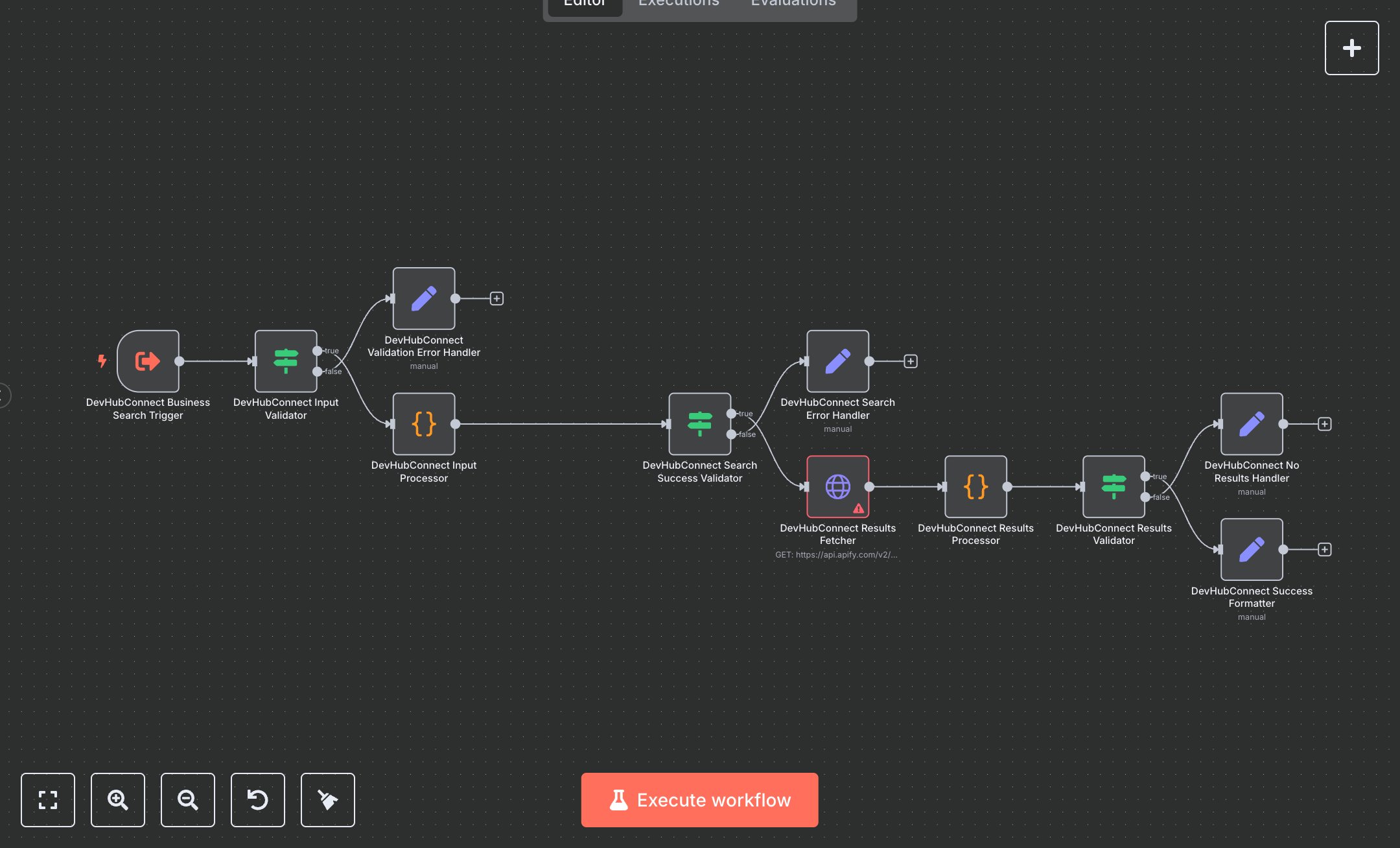
Business Search: Retrieve and Process Google Maps Data with Apify
This workflow automates Google Maps business searches using Apify’s API to retrieve structured business data, like landscaping services in a city. Key nodes include the Workflow Trigger for input, the Condition for validation, the Code for data processing, the HTTP Request for initiating and fetching Apify results, and the Set nodes for formatting outputs or handling errors. To set up, install n8n from n8n.io for self-hosting or sign up at cloud.n8n.io for cloud hosting. Obtain an Apify API key from apify.com by creating an account, navigating to Settings > Integrations, and copying the API token. In n8n, import the workflow JSON. Configure both HTTP Request nodes by setting the Authorization header to `Bearer <your_apify_api_key>` using the API key in the APIFY_API_KEY variable. Set up the Workflow Trigger by copying its webhook URL for external systems or use the sample JSON input ({search: 'landscaping', location: 'New York', state: 'NY', country: 'us', results: 10, include_reviews: true, min_rating: 3.0}). Ensure the results field is between 1 and 20, as enforced by the Code node. Test by sending a JSON payload to the Workflow Trigger webhook via Postman (e.g., {search: 'restaurants', location: 'Chicago', state: 'IL', country: 'us', results: 5, include_reviews: true, min_rating: 4.0}). Verify the Set node’s output for formatted business data, including names, addresses, and ratings. Check for errors like HTTP 401 (invalid Apify API key) or 'Invalid input' (missing search/location fields). Regenerate the API key from Apify if authentication fails. Deploy by activating the workflow in n8n, ensuring valid inputs (non-empty search and location). Monitor logs for API rate limits or 'No results found' errors. Validate the final Set node’s output to confirm it includes business details and summary statistics, ensuring successful data retrieval and processing.
$5.49
Workflow steps: 12
Integrated apps: executeWorkflowTrigger, if, set