LLM Market Research Analysis with Perplexity AI and OpenRouter
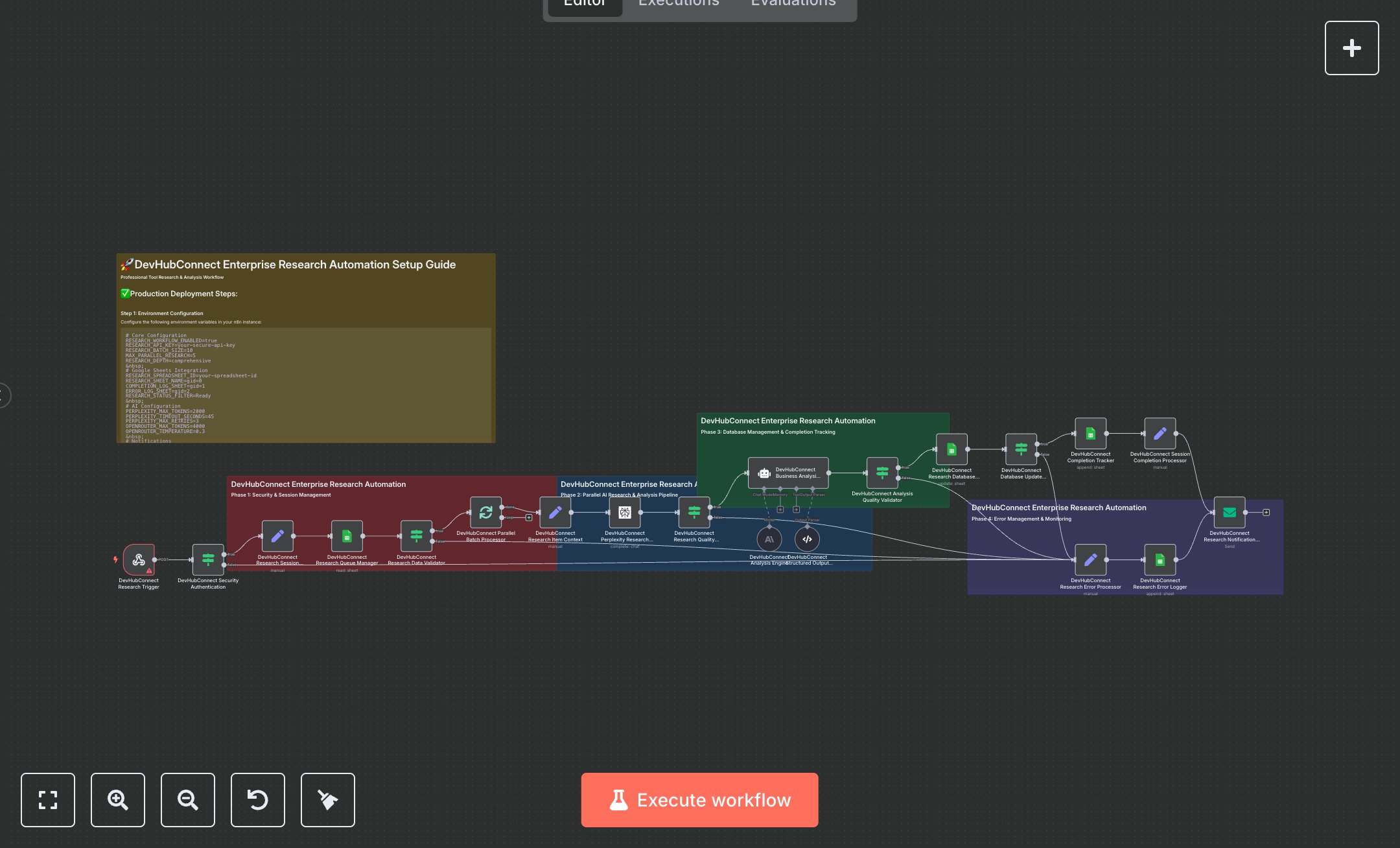
This workflow automates software tool research using Perplexity AI and OpenRouter, leveraging Webhook, Google Sheets, AI Agent, Split in Batches, and Email nodes. It fetches tools from a queue, conducts detailed research, performs business analysis, logs results, and sends notifications, ideal for market research and competitive analysis. Install n8n from n8n.io for self-hosting or sign up at cloud.n8n.io for hosted setup. Create a Google Cloud account at console.cloud.google.com and generate OAuth2 credentials for Google Sheets nodes ('Research Queue Manager', 'Research Database Updater', 'Completion Tracker', 'Error Logger'). Obtain a Perplexity API key from perplexity.ai and an OpenRouter API key from openrouter.ai for the Perplexity node ('Perplexity Research Engine') and OpenRouter node ('Analysis Engine'). Set up an SMTP server for the Email node ('Notification System'). Configure environment variables in the Set node ('Research Session Manager'): RESEARCH_API_KEY, RESEARCH_SPREADSHEET_ID, RESEARCH_SHEET_NAME, COMPLETION_LOG_SHEET, ERROR_LOG_SHEET, RESEARCH_BATCH_SIZE, and MAX_PARALLEL_RESEARCH. Set up the Webhook node ('Research Trigger') with a secure API key in the header. Test by sending a POST request to the Webhook URL with the header 'x-api-key'. Verify Google Sheets ('Completion Tracker') for status='successfully_completed', tool_name, and processing_duration. Check the Email node for success notifications. Missing RESEARCH_API_KEY causes a 401 error in the Condition node ('Security Authentication'), logged in Google Sheets ('Error Logger'). Invalid tool names trigger failures in the Condition node ('Research Data Validator'). Deploy by activating the workflow and ensuring environment variables are set. Monitor Google Sheets for session_id, Features, and Analysis fields. If research data is incomplete, the Condition node ('Research Quality Validator') routes to the Error Processor, logging details for debugging.
$6.99
Workflow steps: 25
Integrated apps: webhook, if, set