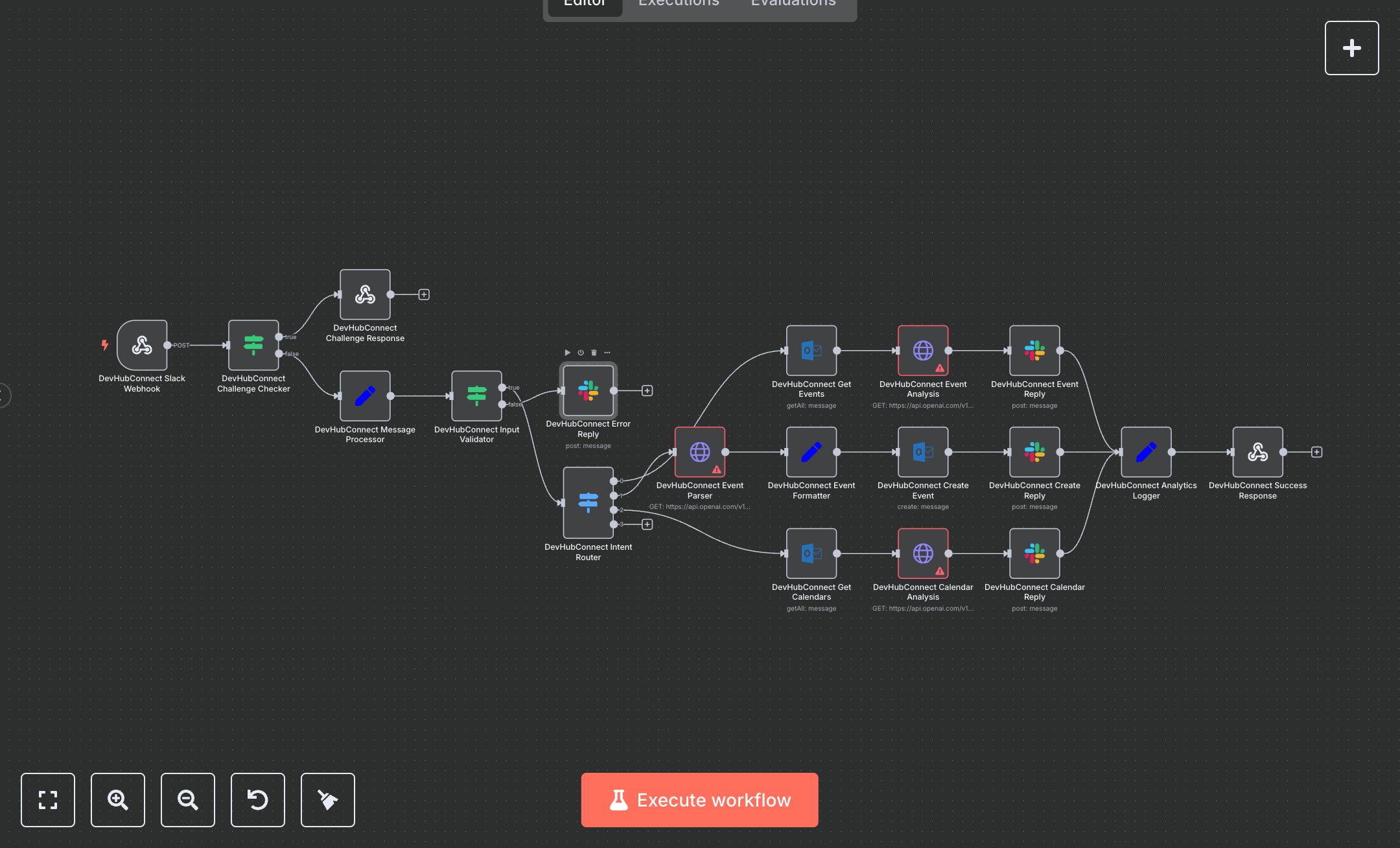
Slack Calendar Assistant: Event Creation and Availability Checking
This workflow automates calendar management via Slack, using AI to process user requests for viewing, creating, or checking calendar availability. Key nodes include Webhook, Condition, Switch, Slack, Microsoft Outlook, HTTP Request, Set, and Respond to Webhook, leveraging Slack, Microsoft Outlook, and OpenAI APIs. To set up, install n8n from n8n.io for self-hosting or use cloud.n8n.io for a hosted solution. Create a Slack app at api.slack.com, enable Event Subscriptions, and obtain a Bot User OAuth Token; configure it in the Slack nodes ('Error Reply', 'Event Reply', 'Create Reply', 'Calendar Reply'). For Microsoft Outlook, register an app in Microsoft Azure, enable Calendars.ReadWrite permissions, generate OAuth2 credentials, and add them to the Microsoft Outlook nodes ('Get Events', 'Create Event', 'Get Calendars'). Sign up at platform.openai.com, get an API key, and configure it in the HTTP Request nodes ('Event Analysis', 'Event Parser', 'Calendar Analysis'). Set the Webhook node’s path to 'slack-calendar-assistant' with HTTPS enabled. Ensure the Slack app’s Request URL points to this Webhook URL. Test by sending a Slack message (e.g., 'show meetings today' or 'create meeting tomorrow at 2pm') to the bot. Verify the Respond to Webhook node for 'success: true' and check Slack for responses like event lists or confirmation messages. If errors occur, such as 401 (invalid credentials), confirm Slack and Outlook OAuth2 tokens in their respective platforms. For invalid input errors, ensure messages are clear and at least three characters long. Check Outlook for created events. Deploy by enabling the Slack app’s Event Subscriptions and subscribing to bot events. Monitor the Analytics Logger node for requestId and actionTaken (e.g., 'create_event'). This setup ensures secure, AI-driven calendar management integrated with Slack for efficient user interaction.
$6.99
Workflow steps: 19
Integrated apps: webhook, if, respondToWebhook