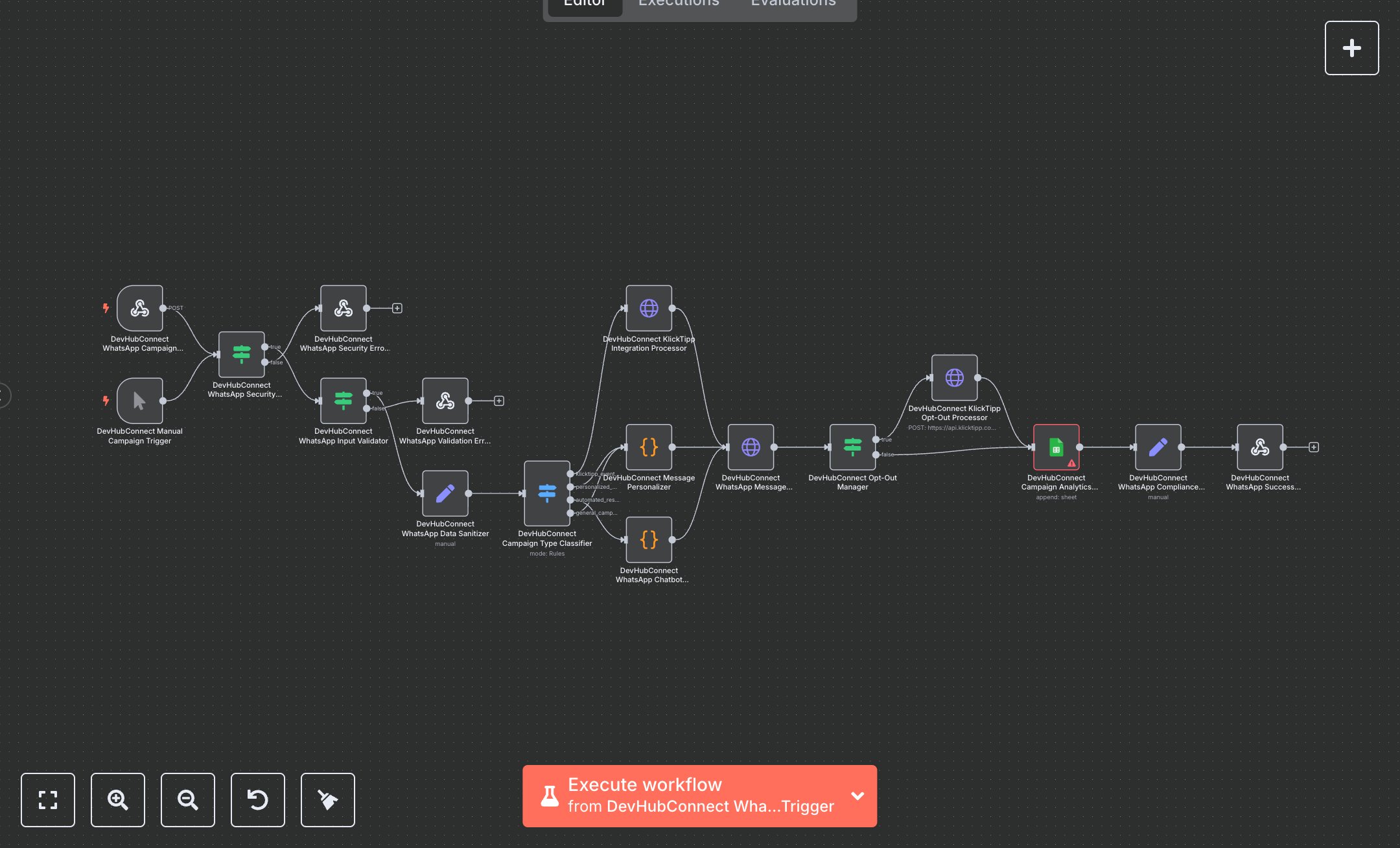
WhatsApp Campaigns with KlickTipp and Personalized Subscriber Engagement
This workflow automates WhatsApp marketing campaigns with KlickTipp integration, managing subscriber data and personalized messaging. Key nodes include Webhook, HTTP Request, Code, Google Sheets, and Respond to Webhook, leveraging WhatsApp Business API and KlickTipp for subscriber engagement. To set up, install n8n from n8n.io for self-hosting or use cloud.n8n.io for a hosted solution. Sign up for a WhatsApp Business API account via Meta for Developers, generate an access token, and configure it in the HTTP Request node ('WhatsApp Message Sender'). For KlickTipp, register at klicktipp.com, obtain API credentials from the account settings, and add them to the HTTP Request nodes ('KlickTipp Integration Processor' and 'KlickTipp Opt-Out Processor'). Create a Google Cloud project, enable the Sheets API, generate OAuth2 credentials, and configure them in the Google Sheets node. Ensure a spreadsheet with columns A:K exists. Set the Webhook node’s path to 'whatsapp-campaign' and enable HTTPS. Input campaign data, subscriber phone number, and message content. Test using the Manual Trigger node, verifying output in the Respond to Webhook node for 'success: true' and campaign metrics. If errors occur (e.g., 401 for an invalid WhatsApp API token or 400 for missing subscriber data), check credentials in Meta for Developers or ensure phone numbers are valid. For Google Sheets errors, confirm OAuth2 setup and spreadsheet permissions. Deploy by activating the Webhook node and sending a POST request with JSON containing campaign and subscriber data. Monitor analytics in Google Sheets for delivery and engagement metrics. This setup ensures GDPR-compliant, personalized WhatsApp campaigns with robust subscriber management.
$6.99
Workflow steps: 17
Integrated apps: webhook, manualTrigger, if