Stock and Crypto Chart Insights with OpenAI
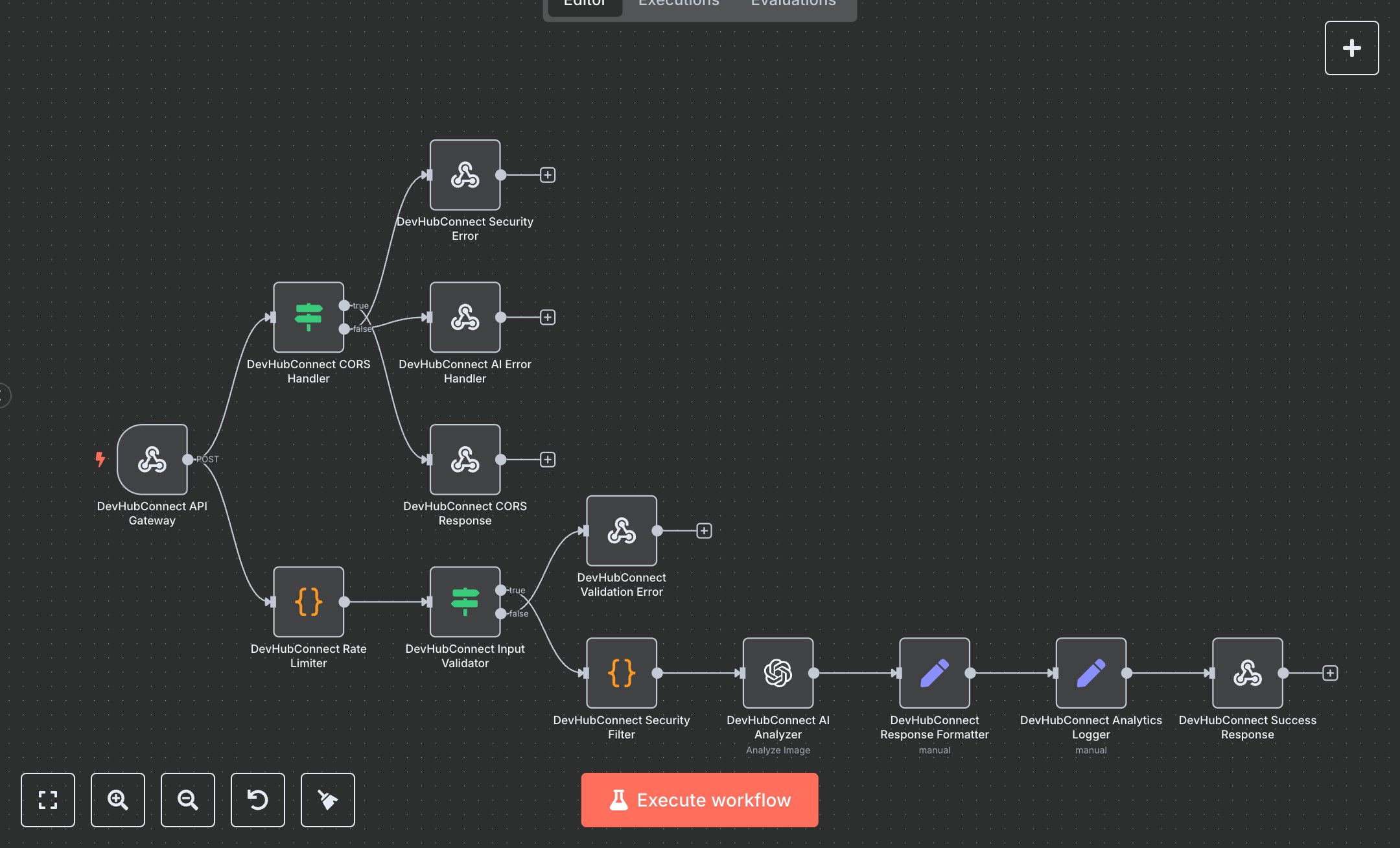
This workflow powers a Chrome extension backend for AI-driven trading chart analysis using OpenAI’s GPT-4o. Key nodes include Webhook for API requests, Condition for CORS handling, Code for rate limiting and security checks, OpenAI for chart analysis, and Webhook Response for formatted outputs. It ensures secure, rate-limited, and beginner-friendly financial insights. To set up, install n8n by downloading from n8n.io for self-hosting or sign up at cloud.n8n.io for cloud use. Obtain an OpenAI API key from platform.openai.com and add it in n8n under Credentials > Add Credential > OpenAI API. Import the workflow JSON via Workflows > Import. Configure the Webhook node with the path /api/v1/analyze-chart, ensuring HTTP Method is POST. For local testing, use ngrok to expose the webhook URL. Verify CORS headers in the Webhook Response node for cross-origin support (Access-Control-Allow-Origin: *). No additional database or service credentials are required, as rate limiting uses in-memory logic (consider Redis for production). Test by sending a POST request to the webhook URL with a base64-encoded image (e.g., JPEG chart under 5MB) and headers like X-API-Key. Validate that the OpenAI node processes the image and returns a structured analysis with trend, indicators, and predictions. Check Condition and Code nodes for errors like invalid base64 or oversized images, triggering Webhook Response with messages like “Invalid image format or size.” Deploy by saving and enabling the workflow, ensuring the webhook remains active. Confirm outputs in the Webhook Response node include JSON with analysis, confidence score, and metadata (e.g., requestId, rateLimiting). For errors, verify OpenAI API key validity in n8n’s Credentials section or check for 403/503 responses indicating security violations or service unavailability, ensuring retry-after headers guide retries.
$5.49
Workflow steps: 13
Integrated apps: webhook, if, respondToWebhook