LLM Business Insights & Lead Generation: AI Chatbot for Restaurants and Companies
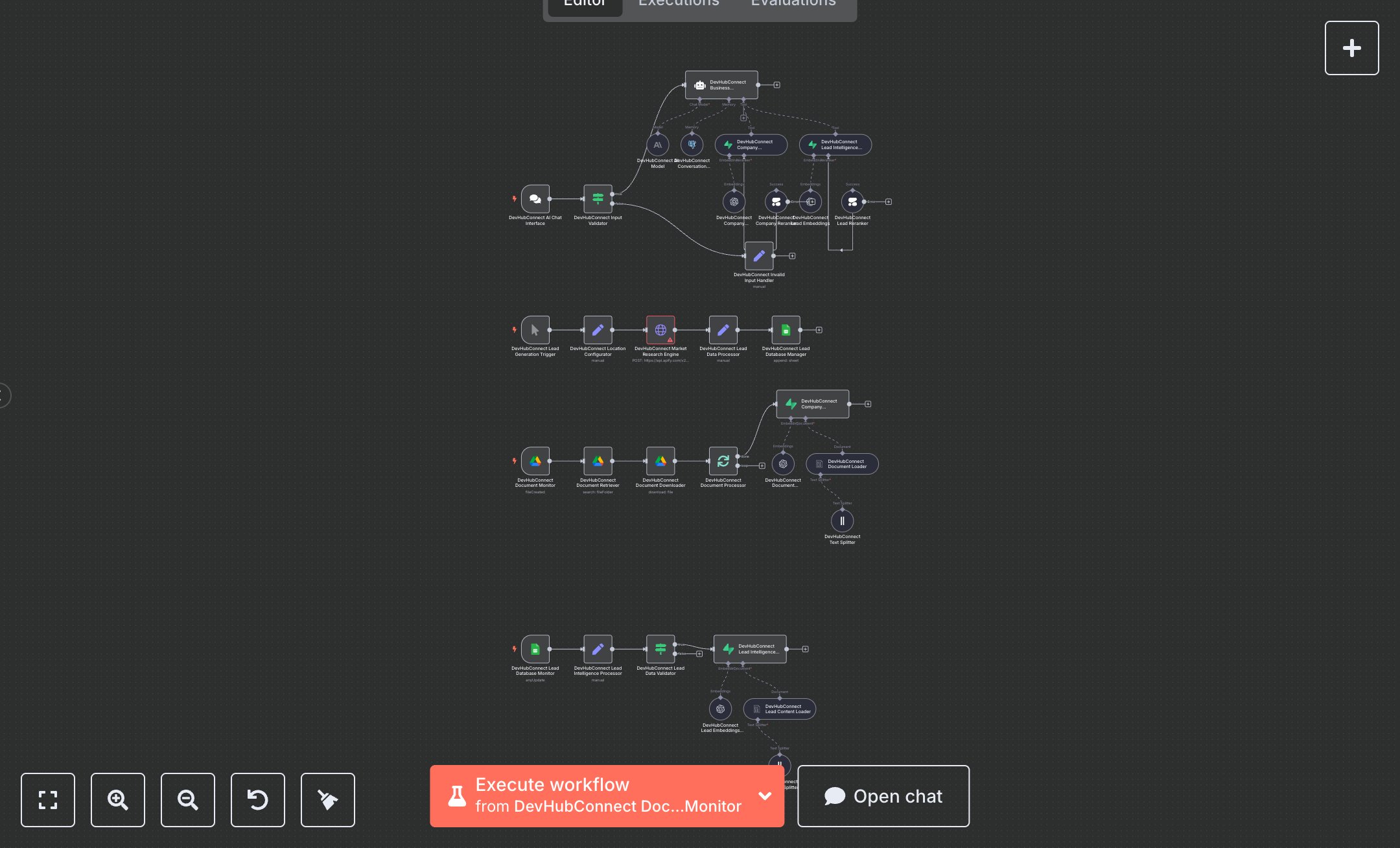
This workflow automates AI-driven business intelligence and lead management, handling company data and restaurant leads. Key nodes include Chat Trigger (initiates AI chat), Condition (validates inputs), Agent (processes queries with OpenAI GPT-4o-mini), Vector Store Supabase (retrieves/stores company and lead data), Google Sheets Trigger (monitors lead updates), Google Drive Trigger (detects new documents), HTTP Request (fetches market data via Apify), and Google Sheets (logs leads). Error handling ensures valid inputs. It uses OpenAI, Supabase, Cohere, Apify, Google Sheets, and Google Drive APIs for data processing.\n\nSetup requirements and configuration: Install n8n from n8n.io (self-hosted) or sign up at cloud.n8n.io. Obtain API keys: OpenAI from platform.openai.com, Supabase from app.supabase.com, Cohere from dashboard.cohere.ai, Apify from console.apify.com, and Google OAuth2 for Sheets/Drive from console.developers.google.com. Create a Google Sheet with a 'lead_intelligence' sheet (columns: business_name, category, location, full_address, phone, website, rating, total_reviews, price_range, opening_hours, business_features, all_categories, lead_score, lead_quality, campaign_id, discovery_date, data_source, status). Set up a Google Drive folder for company documents. Import the JSON workflow in n8n. Configure Chat Trigger, Vector Store Supabase, HTTP Request, Google Sheets, and Google Drive nodes with respective credentials in ‘Credentials.’ Set environment variables OPENAI_API_KEY, SUPABASE_API_KEY, COHERE_API_KEY, APIFY_API_TOKEN, and ensure internet access. Configure the Chat Trigger webhook URL in n8n settings, ensuring public accessibility (e.g., via ngrok for local setups) Testing and deployment steps: Activate the workflow to generate the Chat Trigger webhook URL. Test by sending queries like “List restaurant leads in Bali” or “Company pricing details” via the chat interface. Verify responses cite sources (e.g., “Based on company knowledge…”). Check Google Sheets for logged leads with scores and quality. Monitor Google Drive for new document processing. Test invalid inputs (e.g., empty or short messages) to trigger the Invalid Input Handler. Monitor logs for errors like ‘Invalid OpenAI key,’ ‘Supabase connection failed,’ or ‘Apify timeout.’ Validate lead data in Google Sheets for accuracy, ensuring ratings and contact details are logged correctly.
$6.99
Workflow steps: 32
Integrated apps: chatTrigger, if, agent