Mailgun Email Service
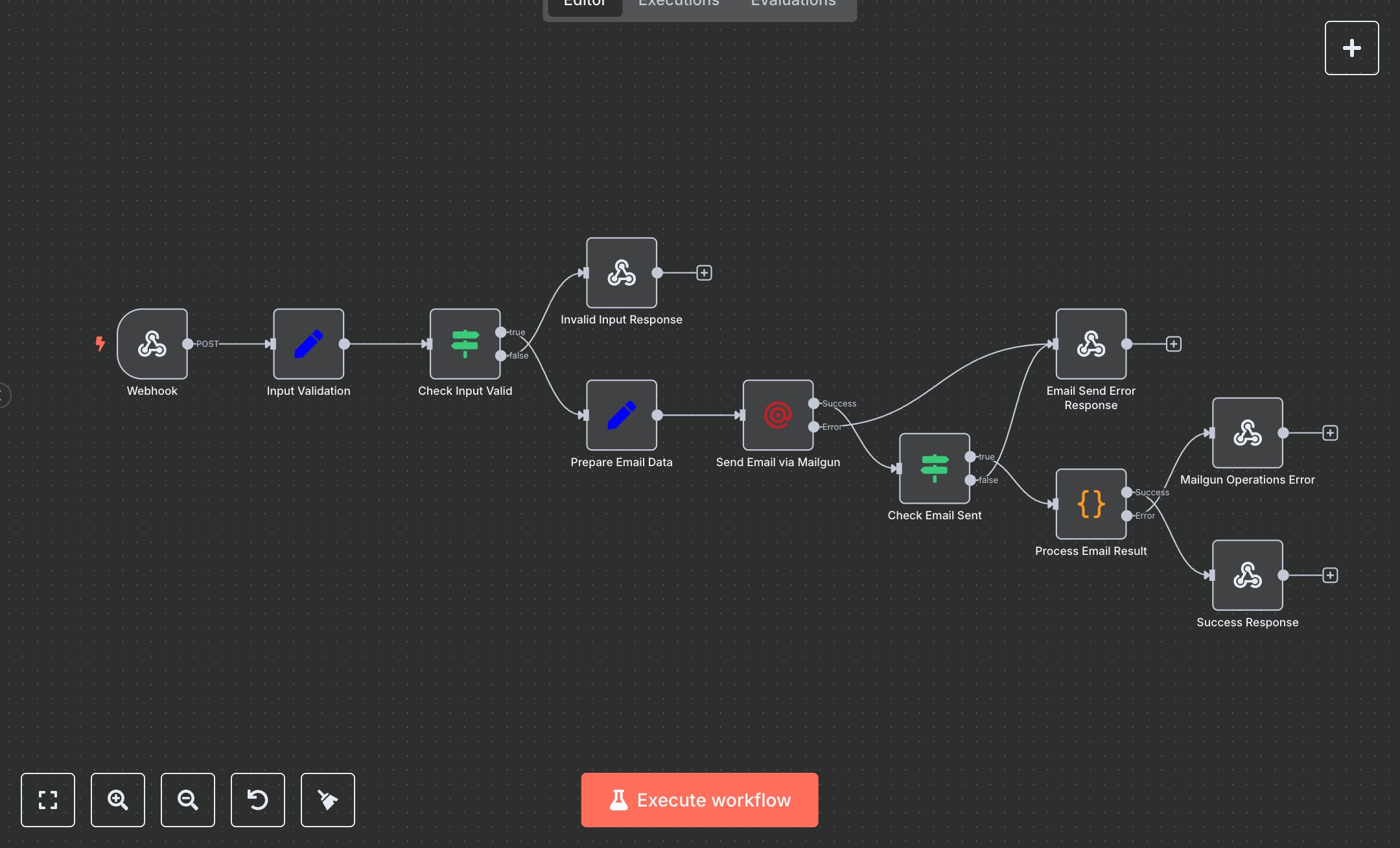
This n8n workflow automates sending emails via the Mailgun API, supporting text and HTML content. Key nodes include Webhook (receives POST requests), Input Validation (sets email parameters), Prepare Email Data (formats content), Send Email via Mailgun (API interaction), Check Email Sent (verifies delivery), and Success/Error Response nodes (handle outputs). It ensures reliable email delivery with tagging. Setup Requirements and Configuration: Install n8n by downloading from n8n.io for self-hosting or sign up at cloud.n8n.io for cloud setup. Follow installation prompts or create a cloud account. Obtain Mailgun API credentials from mailgun.com: sign up, go to 'Domains,' select your domain, and note the API Key and Domain Name from 'API Keys.' In n8n, import the provided JSON to create the workflow. Configure the 'Send Email via Mailgun' node with your Mailgun API Key and Domain Name under 'Credentials,' selecting 'Mailgun API.' Set the Webhook node’s path to 'mailgun-email' and ensure it accepts POST requests. The Input Validation node checks for valid email addresses and operations ('send_email', 'send_message'). Testing and Deployment Steps: Test the workflow by sending a POST request to the Webhook URL (from the Webhook node) using Postman. Example JSON body: {'operation': 'send_email', 'fromEmail': 'sender@yourdomain.com', 'toEmail': 'recipient@example.com', 'subject': 'Test Email', 'text': 'Hello!'}. The 'Success Response' node returns a 200 status with email details, or 'Invalid Input Response' (400 status) for invalid emails. If credentials are invalid, the 'Email Send Error Response' or 'Mailgun Operations Error' nodes return a 502 status. Activate the workflow in n8n’s interface for deployment. Check execution logs for errors like invalid API keys or domain issues, and verify credentials or email formats if failures occur.
$5.49
Workflow steps: 11
Integrated apps: webhook, set, if