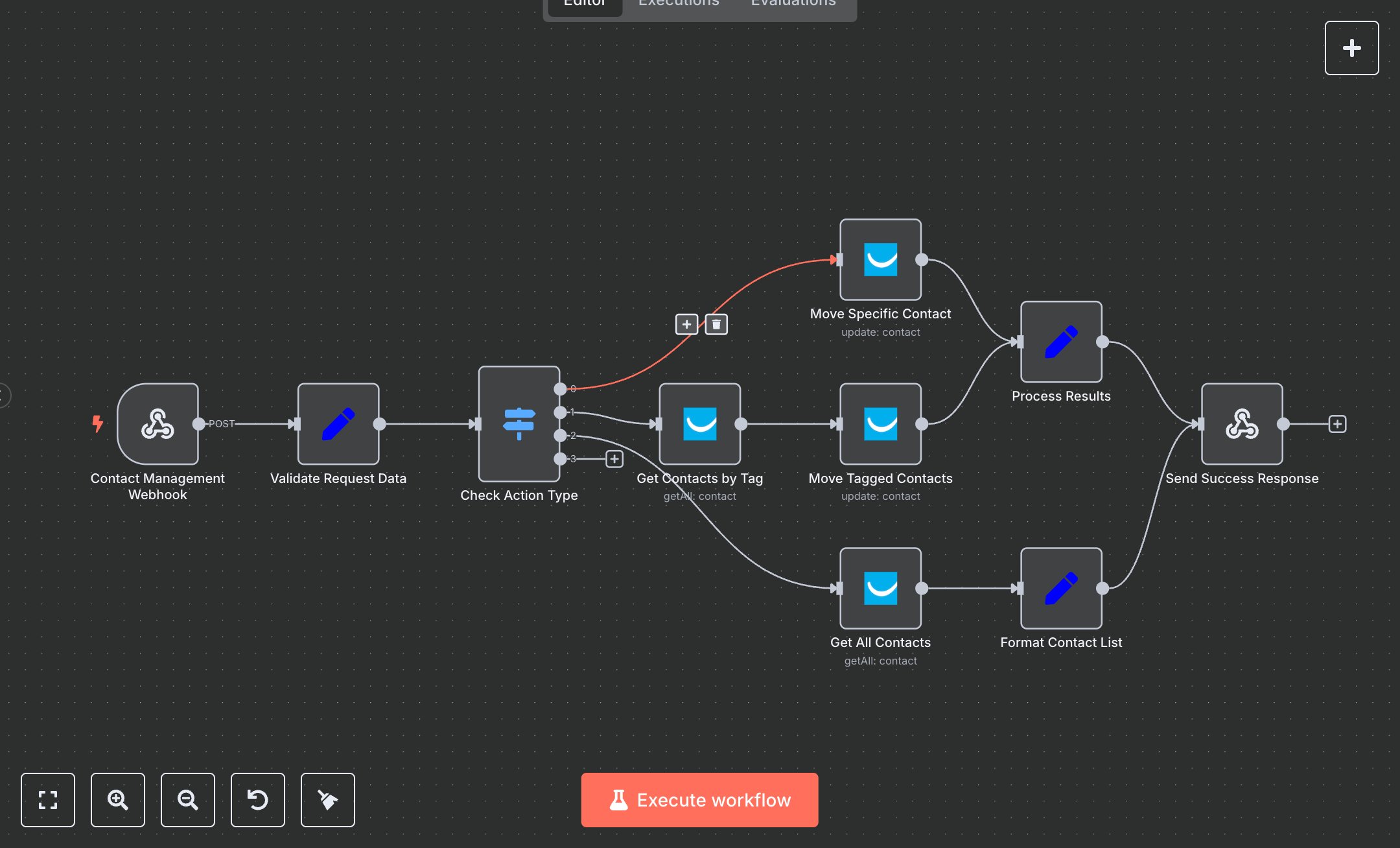
GetResponse Contact Management Workflow
This workflow automates contact management using the GetResponse API in n8n. Key nodes include Contact Management Webhook for receiving POST requests, Validate Request Data to extract inputs, Check Action Type to route actions, Move Specific Contact, Get Contacts by Tag, Get All Contacts, and Move Tagged Contacts for API interactions, and Process Results for formatting outputs. Setup Requirements: Install n8n by downloading from n8n.io for local setup or sign up at cloud.n8n.io for cloud access. For GetResponse, visit getresponse.com, create an account, and generate an API key from the Integrations & API section in your account settings. In n8n, go to Credentials > Add Credential > GetResponse API, name it 'getResponseApi', and enter the key. Configure the Contact Management Webhook node with a unique path (e.g., 'contacts-webhook'). Ensure Move Specific Contact, Get Contacts by Tag, Get All Contacts, and Move Tagged Contacts nodes reference the 'getResponseApi' credential. Missing credentials trigger an authentication error; verify the key. Invalid actions or missing campaign IDs result in a 'failed' status in Process Results. Testing and Deployment: Import the JSON into n8n’s workflow editor. Test the webhook with a POST request (e.g., curl -X POST http://your-n8n-instance/contacts-webhook -d '{"action":"move_campaign","contact_id":"123","target_campaign":"456"}'). Validate outputs in Process Results or Format Contact List nodes, checking fields like contacts_processed, status, or contact_list. Ensure 'status: success' for valid operations. Handle errors like invalid contact_id or tag_filter, which return 'failed' or an empty contact_list. Deploy by activating the workflow in n8n and integrating the webhook URL into your application. Monitor logs for issues like failed API calls or invalid inputs to ensure reliable contact management and robust error handling.
$6.99
Workflow steps: 10
Integrated apps: webhook, set, switch